How We Configure Load Balancing at Enerasoft: A Real Health Check Walkthrough
Gagan Kataria
Parts 1 through 3 of this series covered why load balancing matters, which GCP load balancer type fits your traffic, and whether to go regional or global. All three were about the decision. This one is about the part that actually determines whether your load balancer works the way you think it does: health checks.
Health checks are the piece almost every mid-level tutorial glosses over, and it's exactly where we've seen real production configurations quietly fail. Not dramatically — no outage, no alert. Just a load balancer sending traffic to a backend that's actually struggling, because the health check was tuned to look for the wrong thing.
This post walks through the health check and backend service configuration we actually use at Enerasoft, with working Terraform, and the handful of tuning decisions that make the difference between a load balancer that protects your uptime and one that just looks like it does.
Key Takeaways
- Load balancing is the backbone of scalable cloud architecture — without it, your application is one server failure away from a complete outage.
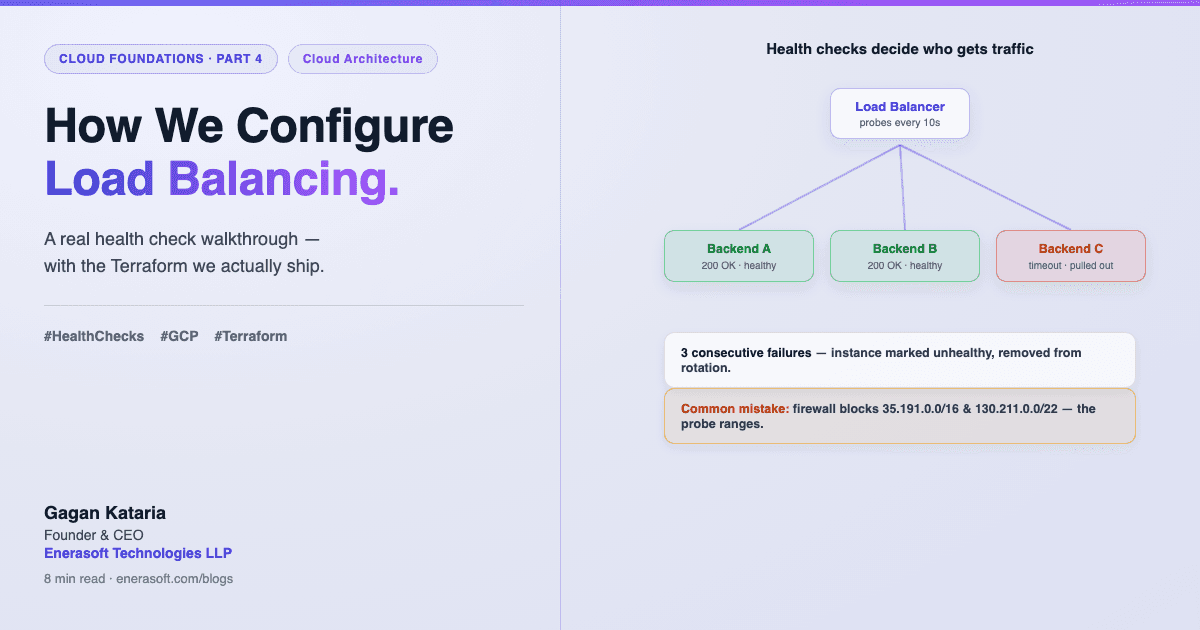
- GCP health checks work by sending periodic probes from dedicated Google IP ranges to your backend instances, checking a specific protocol, port, and path to determine whether each instance is ready for traffic.
- For HTTP, HTTPS, and HTTP/2 health checks, the backend must return 200 OK within the timeout to be marked healthy — probes typically arrive from the 35.191.0.0/16 and 130.211.0.0/22 IP ranges.
- Getting health check thresholds right is a balance: too aggressive and healthy instances bounce in and out of rotation; too lenient and broken instances keep receiving traffic far too long.
- Terminating TLS at the load balancer, rather than at each backend, is a standard best practice that simplifies certificate management and reduces backend CPU load.
New to the series? Part 1 explains why your application needs a load balancer in the first place, Part 2 covers how to choose the right GCP load balancer for your traffic, and Part 3 walks through designing for regional versus global — this post picks up from there.
Why Health Checks Deserve Their Own Deep Dive
It's tempting to think of a health check as a formality — a box you check in the console, a /health endpoint that returns 200 OK, done. In practice, the health check is the entire mechanism your load balancer relies on to know the difference between a server that's fine and one that's quietly failing.
Health checks continuously probe your backend instances to determine which ones are ready to handle traffic and which ones should be taken out of rotation. Getting this right is critical — too aggressive and you'll bounce healthy instances in and out of service; too lenient and you'll send traffic to broken instances for too long (OneUptime, How to Set Up Health Checks for Backend Services on a GCP Load Balancer, February 2026). Both failure modes are real. We've seen both.
Our finding: The most common health check mistake we see isn't a missing health check — it's a health endpoint that only confirms the process is running, not that the application can actually serve a request. A server can respond
200 OKon/healthwhile its database connection pool is exhausted. The load balancer has no way to know that unless the health check actually exercises the dependency.
The Backend Configuration We Start With
Here's the Terraform we use as a baseline for a Cloud Run or Compute Engine backend sitting behind a Google Cloud Application Load Balancer. This isn't a toy example — it's close to what actually ships.
# Health check
resource "google_compute_health_check" "app_health" {
  name                = "enerasoft-app-health"
  check_interval_sec  = 10
  timeout_sec         = 5
  healthy_threshold   = 2
  unhealthy_threshold = 3

  http_health_check {
    port         = 8080
    request_path = "/healthz"
  }
}

# Backend service
resource "google_compute_backend_service" "app_backend" {
  name                  = "enerasoft-app-backend"
  protocol              = "HTTP"
  port_name             = "http"
  timeout_sec           = 30
  health_checks         = [google_compute_health_check.app_health.id]
  load_balancing_scheme = "EXTERNAL_MANAGED"

  backend {
    group           = google_compute_region_network_endpoint_group.cloud_run_neg.id
    balancing_mode  = "UTILIZATION"
    capacity_scaler = 1.0
  }

  session_affinity = "NONE"
  log_config {
    enable      = true
    sample_rate = 1.0
  }
}
This structure — a dedicated health check resource attached to a backend service, with tuned interval, timeout, and threshold values — is the standard pattern for configuring Google Cloud Load Balancing (OneUptime, How to Configure Cloud Load Balancing, January 2026). The specific numbers are where the real decisions live, and that's what the rest of this post covers.
New to the series and haven't locked down the network layer yet? Service account scoping is the companion decision to backend security — worth reading alongside this one.
Tuning the Four Numbers That Actually Matter
Every GCP health check has four core settings, and the defaults GCP suggests aren't wrong — but they're generic. Here's how we think about each one.
Check interval and timeout
check_interval_sec = 10 and timeout_sec = 5 in the example above means the load balancer probes every 10 seconds and waits up to 5 seconds for a response. For most web applications, this is a reasonable starting point. Tighten the interval (e.g., 5 seconds) for services where a few extra seconds of traffic to a failing backend genuinely matters — payment processing, for instance. Loosen it for backends with naturally higher latency, where an aggressive timeout would flag healthy-but-slow instances as failing.
Healthy and unhealthy thresholds
Instances that don't respond successfully to some number of consecutive probes are marked unhealthy. No new connections are sent to unhealthy instances, though existing connections continue. If an instance later responds successfully to consecutive probes again, it's marked healthy and can receive new connections once more (Pulumi, GCP HealthCheck documentation, January 2026).
healthy_threshold = 2 and unhealthy_threshold = 3 means an instance needs 2 consecutive successful probes to be trusted again, but only 3 consecutive failures to be pulled from rotation. That asymmetry is deliberate — we want to be reasonably fast to remove a failing instance, but require a bit more confidence before trusting it again, since a server that just recovered from an issue can still be unstable for the first few seconds.
The health check path — and why it should do real work
This is the setting most teams get wrong, and it's not really about the Terraform at all. /healthz as a path is fine — the question is what that endpoint actually checks.
A health endpoint that returns 200 OK unconditionally tells your load balancer nothing useful. For HTTP, HTTPS, and HTTP/2 health checks, the backend must return 200 OK within the timeout to be marked healthy (OneUptime, How to Troubleshoot GCP Load Balancer Health Check Failures, February 2026) — but that only protects you if the 200 actually means something. At Enerasoft, our health endpoints check the specific dependencies that would make the service unable to actually do its job: a live database connection, a reachable cache layer, and that any critical background workers haven't stalled. If any of those checks fail, the endpoint returns a non-200 status — and the load balancer pulls that instance out of rotation before a real user hits it.
Debugging When Health Checks Fail
When backends start showing unhealthy and you're not sure why, there's a specific, boring order of operations that resolves it faster than guessing.
# Check health check configuration
gcloud compute health-checks describe my-health-check

# Verify backend can respond to health checks
curl -v http://backend-ip:80/health

# Check firewall rules allow health check traffic
gcloud compute firewall-rules list --filter="name~health"

# Check backend utilization and health status
gcloud compute backend-services get-health my-backend-service --global
This sequence — confirming the health check config, manually testing the endpoint, verifying firewall rules, then checking actual backend health status — is the standard troubleshooting path for Cloud Load Balancing (OneUptime, January 2026).
The firewall rule check trips people up most often. Health check probes come from specific Google-owned IP ranges, not from the load balancer's own IP — typically 35.191.0.0/16 and 130.211.0.0/22 (OneUptime, February 2026). If your VPC firewall rules were written to allow traffic only from the load balancer's forwarding IP, the health check probes themselves can get blocked — and you'll see backends marked unhealthy even though the application is running perfectly fine. This connects directly back to the VPC post earlier in this series: your firewall rules need to explicitly allow these Google health check ranges, or the load balancer can never confirm your backend is alive.
Two More Decisions Worth Getting Right
TLS termination at the load balancer, not the backend
Always terminate TLS at the load balancer (OneUptime, 2026) rather than passing encrypted traffic straight through to each backend. This centralizes certificate management — one place to renew and rotate certs instead of one per instance — and removes the CPU overhead of TLS handshakes from your application servers entirely.
Session affinity — only when your application actually needs it
The Terraform above sets session_affinity = "NONE", and that's deliberate. Session affinity (sticky sessions) routes a given user's requests to the same backend consistently — useful for applications holding session state in memory, but a genuine constraint on load balancer flexibility otherwise. GCP supports generated-cookie session affinity with a configurable TTL when it's actually needed (OneUptime, 2026), but we only enable it when the application architecture requires it — for anything stateless, leaving it off gives the load balancer full freedom to route however keeps backends most evenly loaded.
Frequently Asked Questions
What HTTP status code should my health check endpoint return?
A 200 OK for healthy. For HTTP, HTTPS, and HTTP/2 health checks, the backend must return 200 OK within the timeout to be marked healthy (OneUptime, 2026) — any other status code, or no response within the timeout window, marks the instance unhealthy and removes it from rotation.
How often should health checks run?
A 10-second interval with a 5-second timeout is a reasonable default for most web applications. Health checks poll instances at a specified interval, and instances that don't respond successfully to consecutive probes are marked unhealthy (Pulumi, 2026) — tighten this for latency-sensitive services, loosen it for backends with naturally higher response times.
Why is my backend showing unhealthy when the application is clearly running?
The most common cause is a firewall rule blocking the health check probe itself. Probes come from Google-owned IP ranges — typically 35.191.0.0/16 and 130.211.0.0/22 — not from the load balancer's forwarding IP (OneUptime, 2026). If your VPC firewall only allows traffic from expected application sources, these probe ranges need an explicit allow rule.
Should my health check test the same endpoint my users hit?
No — use a dedicated health endpoint, but make it check real dependencies (database connectivity, cache reachability) rather than returning an unconditional 200 OK. A health check that only confirms the process is running, without checking whether it can actually do its job, gives your load balancer a false sense of confidence.
Closing Out the Cloud Foundations Series
This is the fourth and final post in the Cloud Foundations series — from why load balancing matters, through choosing the right type, deciding regional versus global, and now the health check configuration that makes the whole thing actually work in production.
The thread running through all four posts, and through the earlier VPC and service accounts posts before them: none of this is complicated once you understand it. It just needs to be decided deliberately, with the specific tradeoffs in view, rather than accepted as a default or discovered during an incident.
If you're building or reviewing your own cloud architecture and want a second pair of eyes on the configuration — health checks included — we'd be glad to talk it through.
Written by Gagan Kataria, Founder & CEO at Enerasoft Technologies LLP — an AI-powered software and cloud engineering company based in Hyderabad, India. This is Part 4 of the Cloud Foundations series.
Sources
- OneUptime, How to Configure Cloud Load Balancing, by nawazdhandala, 24 January 2026, retrieved 2025-07-29, https://oneuptime.com/blog/post/2026-01-24-configure-cloud-load-balancing/view
- OneUptime, How to Set Up Health Checks for Backend Services on a GCP Load Balancer, by nawazdhandala, 17 February 2026, retrieved 2025-07-29, https://oneuptime.com/blog/post/2026-02-17-how-to-set-up-health-checks-for-backend-services-on-a-gcp-load-balancer/view
- OneUptime, How to Troubleshoot GCP Load Balancer Health Check Failures, by nawazdhandala, 17 February 2026, retrieved 2025-07-29, https://oneuptime.com/blog/post/2026-02-17-how-to-troubleshoot-gcp-load-balancer-health-check-failures/view
- Pulumi, Google Cloud (GCP) Classic — compute.HealthCheck, v9.10.0, 16 January 2026, retrieved 2025-07-29, https://www.pulumi.com/registry/packages/gcp/api-docs/compute/healthcheck/
- Google Cloud Documentation, Health checks overview, last updated 2026-08-26, retrieved 2025-07-29, https://docs.cloud.google.com/load-balancing/docs/health-check-concepts